macOS Wired Connection Guide
The RNDIS network driver is the common default method for wired network sharing on Android phones, and UPort uses the same approach. However, macOS does not include a built-in RNDIS network driver, so it cannot connect directly to UPort over USB by default.
If you only need a temporary connection, such as for resetting a password, we recommend using another device to access UPort, such as a Windows or Linux computer or an Android phone. iPhone devices usually cannot complete this type of connection either.
If no other device is available, or if you want to use USB to connect from macOS for the long term, you need to install a third-party RNDIS driver.
Installing this driver requires disabling part of the system security policy, which may reduce device security. See the end of this page for how to uninstall the driver and restore SIP.
The driver used in this guide comes from the community project HoRNDIS. The original project was developed by jwise, but it has not been maintained for a long time. macOS 11 and later versions usually require a later adapted version.
Related project links:
- https://joshuawise.com/horndis
- https://github.com/jwise/HoRNDIS
- https://github.com/TomHeaven/HoRNDIS (adapted for macOS 11+)
- https://github.com/nEdAy/HoRNDIS-for-M1 (dedicated Apple M1 chip version)
After the driver is installed, macOS can recognize the RNDIS network device, as shown below.
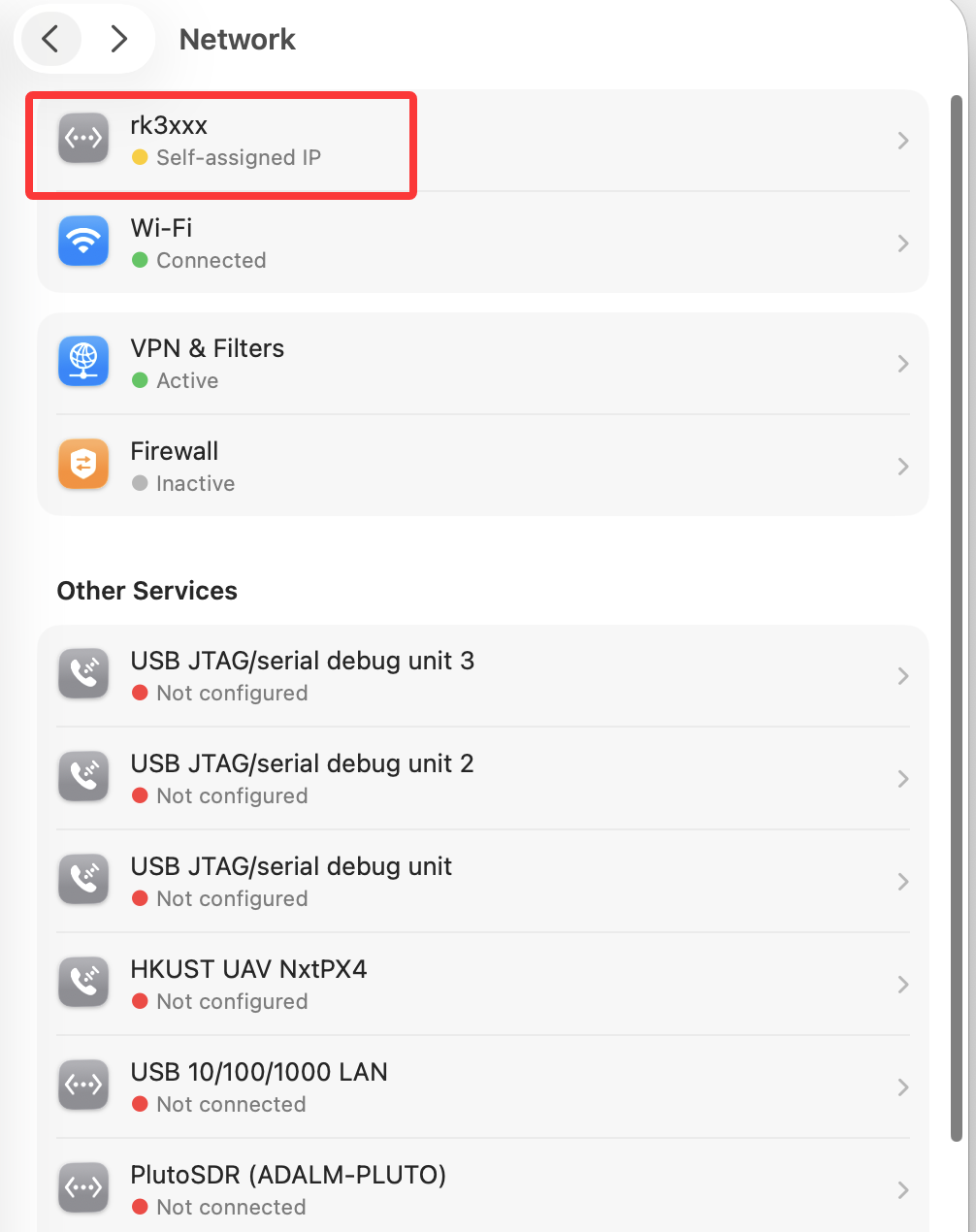
Installation Options
Whichever installation method you choose, first complete Step 1: Allow Third-Party Kernel Extensions.
Method 1: Install the Precompiled Package from GitHub
You can download the .pkg installer directly from the project page. After completing the first step, run the installer, then go to "System Settings -> Privacy & Security" and allow the kernel extension. After rebooting, macOS should be able to recognize the RNDIS network device.
Method 2: Build It Yourself or Install the Version We Provide
If you want to build it yourself, install the Xcode build environment first. You can also use the precompiled kernel extension file we provide for Apple M-series chips. Mac computers produced after 2020 can usually use this version.
Step 1: Allow Third-Party Kernel Extensions
Shut down the Mac first, then enter recovery mode:
- Apple Silicon chip: press and hold the power button.
- Intel chip: press and hold Command + R during startup.
After entering recovery mode, open "Utilities -> Terminal" from the menu bar and enter the following commands. This operation re-enables SIP while preserving permission for third-party kernel extensions:
csrutil disable
(enter your password)

csrutil enable --without kext
(enter your password)
Next, open "Utilities -> Startup Security Utility" from the menu bar and enable kernel extensions from identified developers.
Step 2: Install the Precompiled File
If you plan to build it yourself, you can skip this step.
First download the precompiled file: Download HoRNDIS.kext.zip
Open Terminal and run the following commands to enter the kernel extension directory:
cd /Library/Extensions
open .
Place the downloaded HoRNDIS.kext into the opened Finder window.
Return to the original Terminal window and run the following command to load the kernel extension:
sudo kextload -t HoRNDIS.kext
After restarting the computer, reconnect UPort or an Android phone with wired network sharing enabled. You should then see the new network device in System Settings.
Step 2: Build and Install It Yourself
If you choose to build it yourself, you can use the TomHeaven adapted version:
git clone https://github.com/TomHeaven/HoRNDIS.git
cd HoRNDIS
make
sudo cp -R build/Release/HoRNDIS.kext /Library/Extensions/
sudo kextload /Library/Extensions/HoRNDIS.kext
Uninstall
Open Terminal and run the following commands to uninstall HoRNDIS. After finishing, restart the computer and use the commands below to restore SIP.
BUNDLE_ID=$(/usr/libexec/PlistBuddy -c 'Print :CFBundleIdentifier' /Library/Extensions/HoRNDIS.kext/Contents/Info.plist)

echo "Bundle ID: $BUNDLE_ID"

sudo kmutil unload -b "$BUNDLE_ID" 2>/dev/null || sudo kextunload -b "$BUNDLE_ID"

sudo rm -rf /Library/Extensions/HoRNDIS.kext
sudo rm -rf /tmp/HoRNDIS

sudo kextcache -i /

echo "Done. Please reboot macOS."
The commands to restore SIP are as follows:
csrutil disable
(enter your password)

csrutil enable
(enter your password)