UPort USB Wired Connection Guide
This page explains how to use UPort through a wired connection.
Check whether your computer has an RNDIS driver installed. Windows and Linux systems usually include this driver by default, while macOS requires a manual installation. See the macOS wired connection guide.
After connecting UPort directly over USB, the computer will detect a new network device. Wait about 1 minute while UPort automatically configures the network and starts the DHCP service. The computer will automatically obtain an IP address, usually in the 192.168.123.x range.
After the connection is ready, open http://192.168.123.1 in a browser to enter the UPort Web UI.
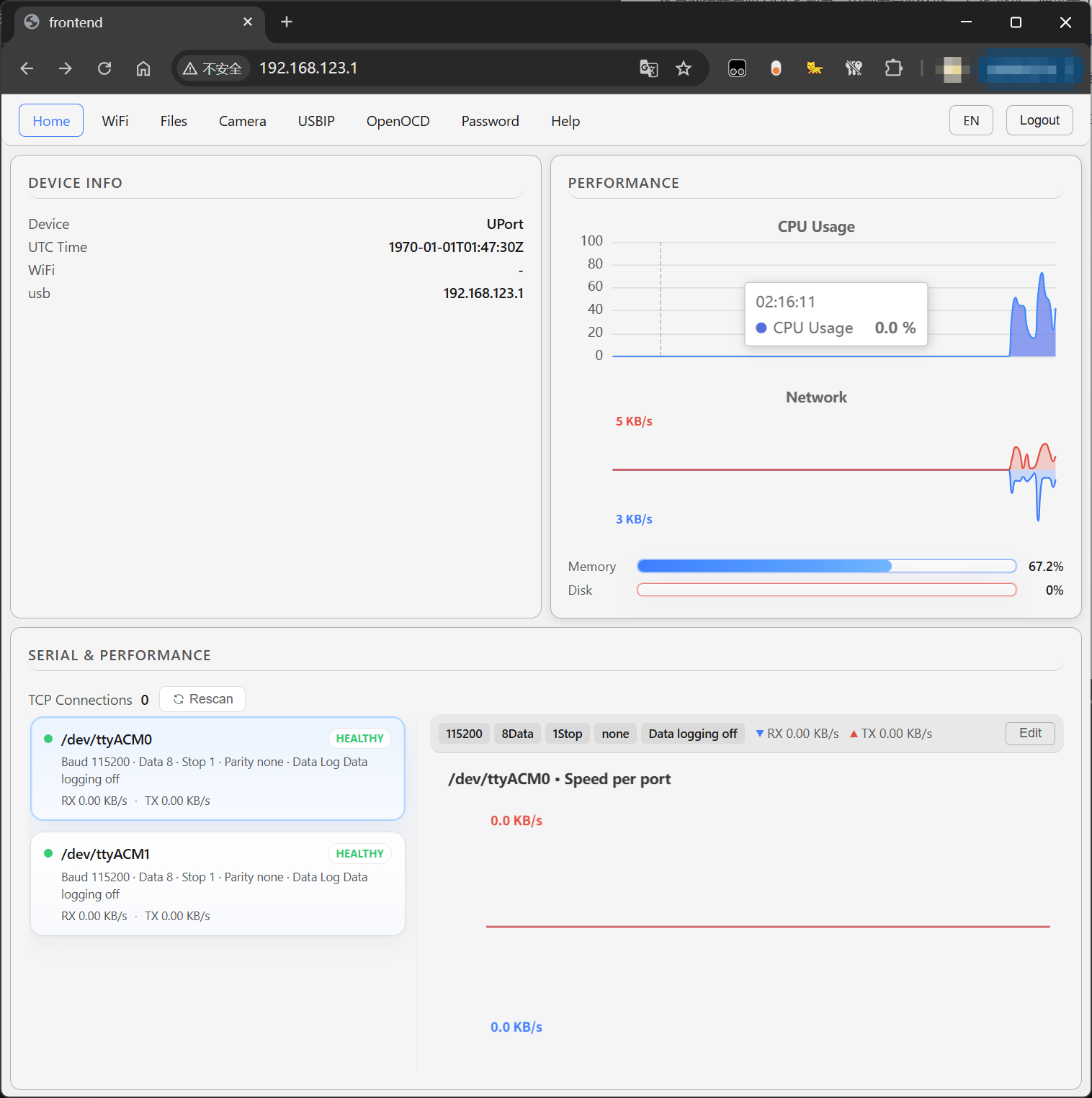
You can then use the Web UI to adjust settings and perform operations such as viewing serial port data and configuring Wi-Fi connections.
This method does not require the admin password. If you have forgotten the password or need to reset it, you can also connect directly over USB and access the Web UI to reset it.