UPort UART Logging
Prerequisites:
- A TF card or SD card with more than 128 MB of free space is inserted into UPort.
- The UART has been configured with the correct baud rate and other parameters.
If the UART has not been configured yet, see UART configuration. If the UART parameters are incorrect, UART logging will not work properly.
Enable UART Logging
You can enable UART logging from either of the following entry points:
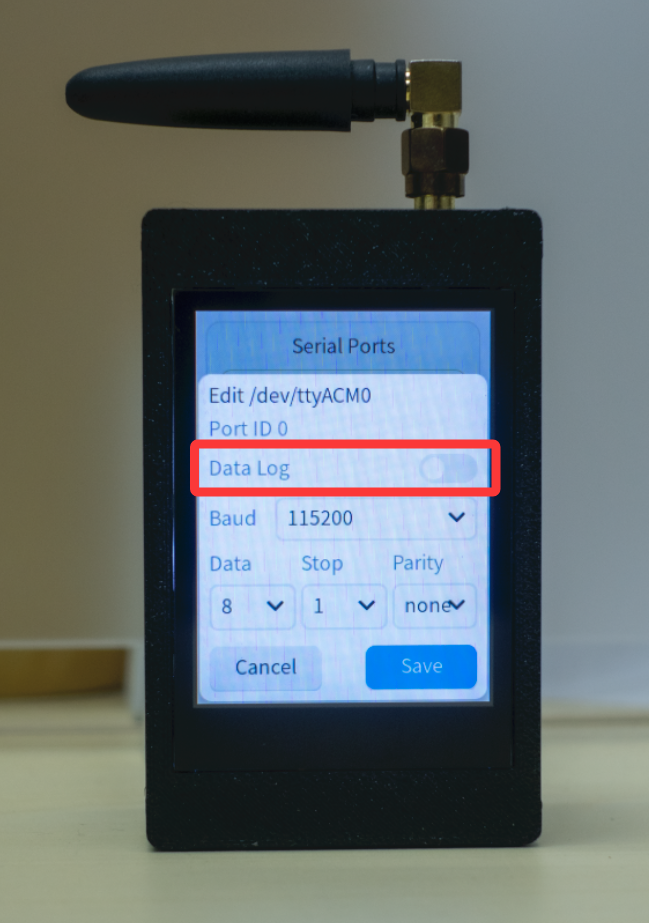
- In the WebUI, select the UART to record at the bottom of the home page, click
Edit, enable data logging, and save the settings. - On the screen, tap the UART to record, tap
Edit, enable the second optionData Log, and save the settings.
Download UART Logs
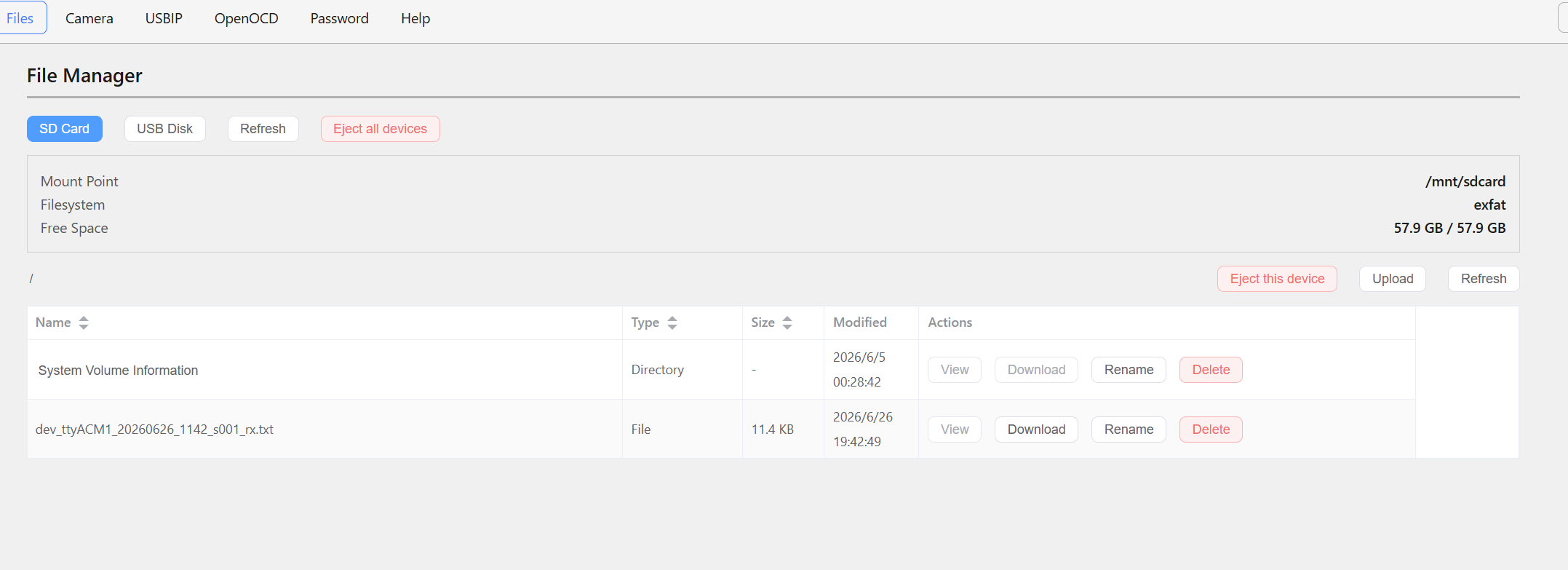
If everything is working correctly, UART log files are saved to the TF card or SD card. The filenames are dev_ttyACMX_YYYYMMDD_HHMMSS_sxxx_rx.txt and dev_ttyACMX_YYYYMMDD_HHMMSS_sxxx_tx.txt.
In these filenames, YYYYMMDD_HHMMSS is the time when logging started, ttyACMX is the UART device name, sxxx is the x-th log segment, rx is received data, and tx is transmitted data.
If the UART has no data, no UART log file is saved.
Read the Storage Directly
While UPort is powered on, go to the Device info page, select Eject storage, wait for the Storage ejected prompt, then remove the TF card or SD card and insert it into your computer to download the UART log files.
Download Through WebUI
In the WebUI, click File Manager in the navigation bar, select Download storage, and wait for the Storage downloaded prompt. You can then download the UART log files on your computer.
The process is shown below: