UPort USB/IP Remote USB
UPort has only one built-in USB port. If you need to connect multiple USB devices, use a USB hub.
Prerequisite:
- Any USB device is connected to UPort, such as a USB camera, USB-to-UART adapter, or USB storage device.
Devices not recommended for USB/IP:
- Debugger probes. Use OpenOCD for debugging and flashing instead, because USB/IP can have unexpected speed issues.
- USB cameras.
USB/IP lets you share USB devices connected to UPort over the network and use them from a computer. Its behavior can differ from native USB devices and may cause unexpected issues, so compatibility depends on actual results.
Known Issues
- For unknown reasons, the Windows USB/IP driver is extremely slow with STLINK + Keil. Use OpenOCD for debugging and flashing instead.
Step 1: Start the USB/IP Service on UPort
After entering the web backend, find the USBIP option in the navigation bar and click it.
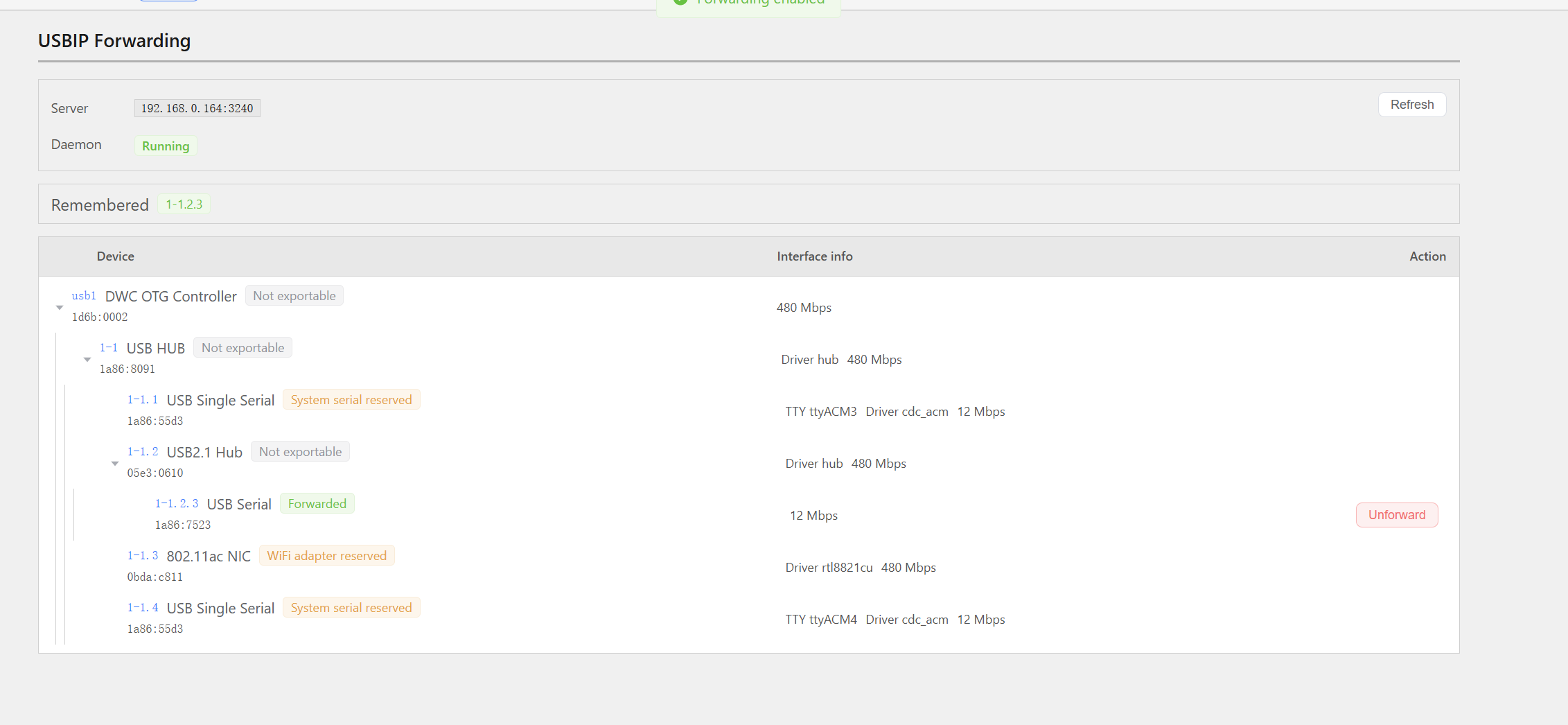
By default, the USB/IP service is disabled. Select any device below to forward it. The following example uses a USB-to-UART device.
After selecting Forward for the device, the USBIP service starts. The UPort IP address and port number are displayed at the top. The default port number is 3240. Other devices use the same workflow: select a device, then click forward.
Step 2: Connect to USB/IP from a Computer
Windows
- Download and install usbip-win2.
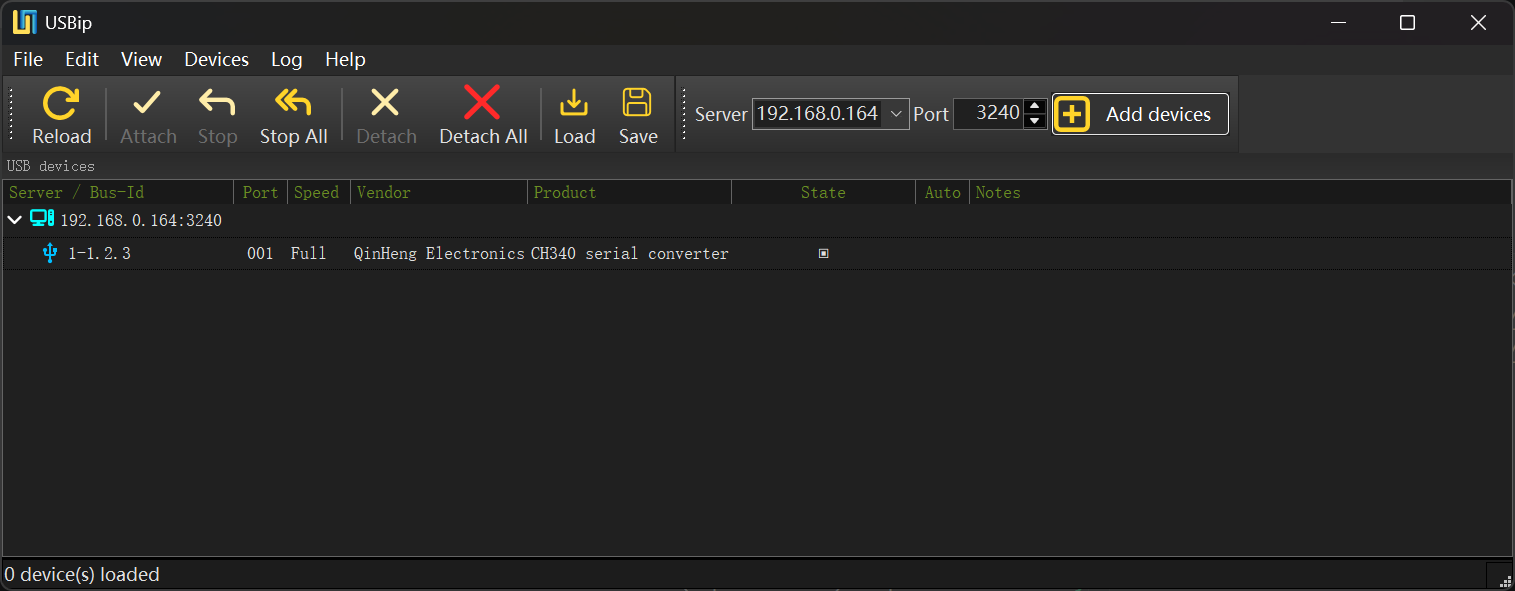
- Enter the UPort device IP address and port number 3240 in the upper-right corner, then click
Add Devies. The USB devices forwarded from UPort are displayed. - Select the device to connect, then double-click it. When Status is solid, forwarding is successful and you should hear the device connection chime.
The software interface is shown below:
Linux
This should be straightforward on Linux.